

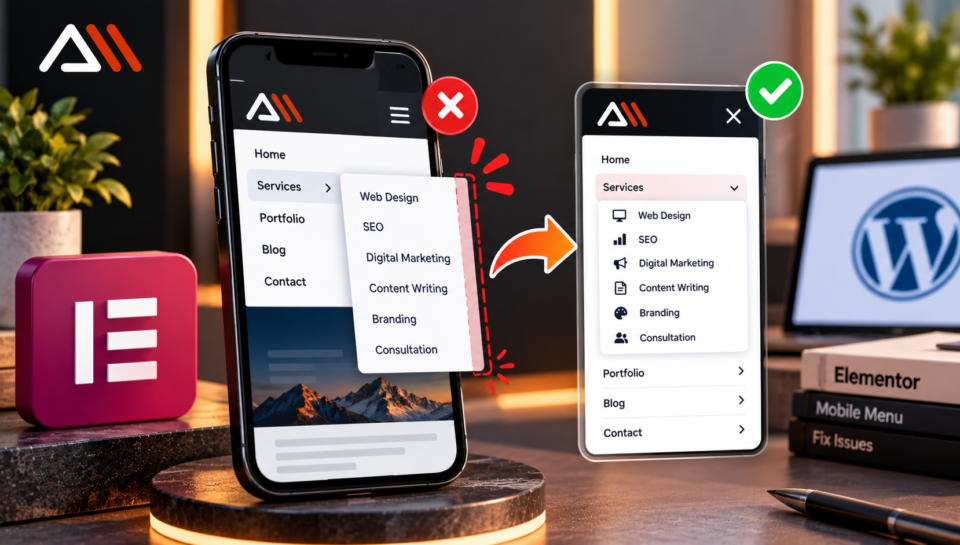
Is your Elementor dropdown menu going outside the screen on mobile devices? This is a common issue in WordPress websites, especially when using the Elementor Nav Menu widget in a custom header. When users tap a submenu on their phone, it may open beyond the mobile viewport, making menu items difficult to read or select.
The good news is that you can often fix this issue with custom CSS and a few adjustments to your Elementor menu settings.
In this guide, you will learn how to fix the Elementor mobile dropdown menu going off screen, adjust submenu positioning, and improve your website’s mobile navigation experience.
Why Does the Elementor Mobile Dropdown Menu Go Off Screen?
Several factors can cause an Elementor submenu to extend beyond the visible area of a mobile screen.
Common causes include:
Incorrect submenu positioning: Absolute positioning or unwanted offsets may push the dropdown outside the viewport.
Dropdown width issues: A submenu wider than its parent container can cause horizontal overflow.
CSS transform properties: Existing transforms may shift the dropdown away from its intended position.
Parent container restrictions: Container width or overflow settings may prevent the menu from displaying correctly.
Responsive design conflicts: Desktop menu styles may interfere with the mobile navigation layout.
Identifying the cause helps you choose the right fix without unnecessarily changing your website’s design.
Method 1: Fix the Elementor Mobile Dropdown Using Custom CSS
One of the easiest solutions is to apply custom CSS to the Elementor Nav Menu widget. This CSS adjusts submenu positioning and width on mobile screens.

Step 1: Open Your Elementor Header Template
Follow these steps:
Log in to your WordPress dashboard.
Navigate to Templates → Theme Builder or open your saved header template through Elementor.
Click Edit with Elementor.
Select the Nav Menu widget that contains your dropdown menu.
Open the Advanced tab.
Find the Custom CSS section.
Note: Custom CSS is an Elementor Pro feature. If your interface differs, check your Elementor version and the type of menu widget you are using.
For more details on adding CSS to individual widgets, follow the official Elementor Custom CSS guide.
Step 2: Add the Custom CSS Code
Copy and paste the following CSS into the widget’s Custom CSS field.
/* Fix mobile dropdown menu overflow */
@media (max-width: 767px) {
selector .sub-menu {
position: static !important;
width: 100% !important;
max-width: 100% !important;
box-sizing: border-box !important;
left: auto !important;
right: auto !important;
transform: none !important;
}
selector .elementor-nav-menu–dropdown {
max-width: 100% !important;
box-sizing: border-box !important;
}
selector .elementor-nav-menu–dropdown .elementor-item {
white-space: normal !important;
overflow-wrap: anywhere;
}
}
Step 3: Understand What the CSS Does
Here is how the CSS helps address the issue:
position: static removes absolute positioning from matching submenu elements so they follow the normal document flow.
width: 100% makes the submenu fit within its containing block.
max-width: 100% prevents the submenu from exceeding the width of its container.
box-sizing: border-box includes padding and borders within the declared width.
left: auto and right: auto remove conflicting horizontal offsets.
transform: none disables transforms that could shift the submenu.
white-space: normal allows long menu labels to wrap onto multiple lines.
overflow-wrap: anywhere helps prevent long words from forcing horizontal overflow.
The selector keyword is specific to Elementor’s Custom CSS editor. If you add this CSS to your site’s global stylesheet, replace selector with the appropriate CSS class or selector for your menu widget.
Important: The position: static rule may change how dropdowns expand and interact with the mobile menu. Test the result carefully. If your submenu stops opening or no longer behaves as expected, use a more targeted positioning fix instead.
Method 2: Check Elementor Nav Menu Widget Settings
If the CSS does not completely resolve the problem, review your responsive menu settings.
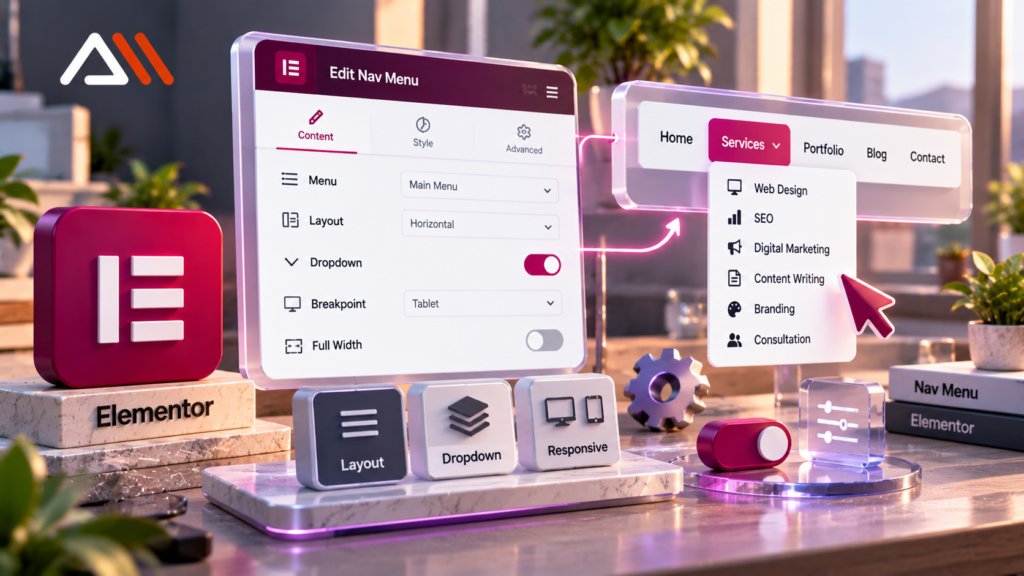
- Check the Mobile Breakpoint
Open the Nav Menu widget and review its responsive breakpoint settings. Make sure the mobile dropdown activates at the intended screen width.
You can also refer to the official Elementor Nav Menu widget documentation to understand mobile breakpoints, dropdown layouts and menu alignment settings.
- Review the Menu Layout
If your widget provides a vertical dropdown layout, use it for mobile navigation where appropriate. A vertical menu is generally easier to navigate on smaller screens.
- Check Dropdown Width
If your Elementor version provides dropdown or submenu width controls, configure them to fit the available mobile space.
- Set Positioning to Default
Select the menu widget and navigate to Advanced → Positioning. Check whether custom positioning, negative margins, or offsets are causing the dropdown to move outside the viewport.
- Inspect Parent Containers
Check the containers surrounding your menu. Look for restrictive widths, unexpected padding, or overflow: hidden rules that might clip dropdown content.
Method 3: Clear Cache and Test on Mobile
After applying your changes, follow these steps:
Click Update in Elementor.
Clear your WordPress caching plugin’s cache.
Regenerate Elementor CSS files if your version provides that option.
Clear any CDN or server cache if applicable.
Open your website in a private browser window.
Test the menu at different mobile screen widths.
You can also use your browser’s developer tools to simulate mobile devices and inspect the submenu’s computed width, position, and overflow properties.
If your changes are not appearing on the live website, follow Elementor’s official instructions to clear CSS files and cached data.
What If the CSS Does Not Work?
The CSS above targets Elementor’s classic Nav Menu widget. Elementor’s newer WordPress Menu widget may use different markup and class names.
If the issue persists, inspect the actual submenu element in your browser’s developer tools. Check whether the submenu is positioned absolutely, whether its parent has a restricted width, and whether another CSS rule overrides your custom styles.
Avoid adding multiple broad CSS overrides without checking the underlying cause. Targeted CSS is easier to maintain and less likely to break desktop navigation.
Conclusion
An Elementor mobile dropdown menu that opens outside the screen can make your website difficult to navigate. The problem is often related to submenu positioning, dropdown width, responsive settings, or container overflow.
Start by reviewing your Elementor Nav Menu widget settings, apply the mobile-specific CSS where appropriate, and test the menu on different devices. If the issue continues, inspect the actual widget markup to identify the conflicting rule.
At ArslnMak, we help businesses improve their WordPress websites through web development, responsive design, and practical technical solutions. A properly configured mobile menu is one important step toward a smoother user experience.
Need help with your WordPress website? Explore ArslnMak for professional web development and digital solutions.