

Imagine someone visits your website, likes your services and fills out your contact form to ask for a price.
They click Submit and see a success message.
But you never receive their email.
You might not even know that a potential customer tried to contact you.
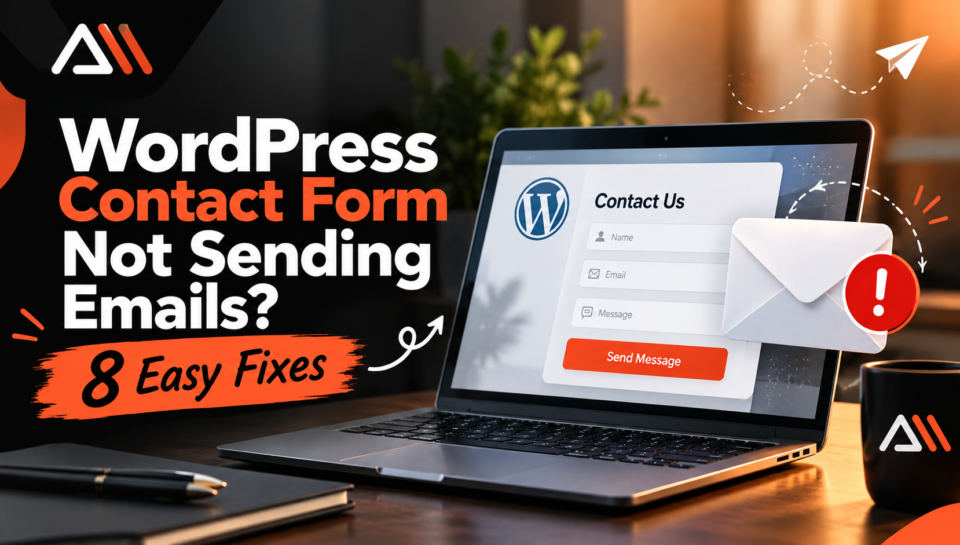
If your WordPress contact form is not sending emails, this can be frustrating, especially when you depend on your website for customer inquiries.
The problem does not always come from the contact form itself. Sometimes, the form works correctly but WordPress cannot deliver the notification. Other times, the email reaches your mailbox but gets filtered into spam.
In this beginner-friendly guide, you will learn eight practical ways to identify and fix WordPress contact form email problems without making unnecessary changes to your website.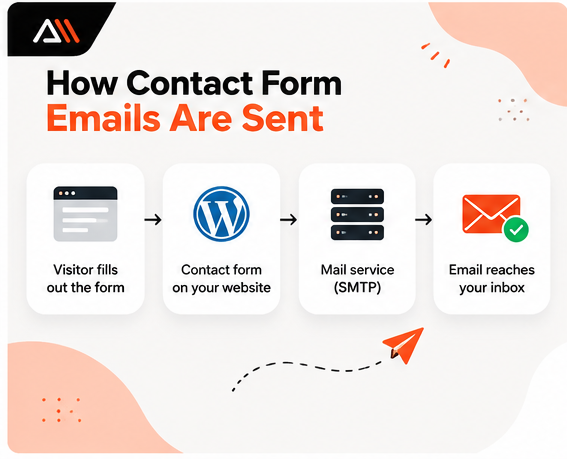
Why Is My WordPress Contact Form Not Sending Emails?
A WordPress contact form collects information from visitors and usually sends a notification to an email address you choose.
For example, a visitor might enter their name, email address and message to request a website design service.
After submission, the form plugin asks WordPress to send the notification.
However, several things can go wrong during this process.
Common causes include:
- Incorrect recipient email addresses
- Disabled form notifications
- Emails landing in spam
- Unreliable server email delivery
- Missing SMTP configuration
- Incorrect sender information
- Email authentication problems
- Plugin conflicts or hosting restrictions
The most important thing is to identify whether your form is failing to submit or whether its email notification is failing to arrive.
These are different problems and they may need different solutions.
Before You Start: Test Your Contact Form
Before changing any settings, perform a simple test.
Open your website in a private or incognito browser window.
Go to your Contact Us page and complete the form using an email address you can access.
Enter a recognizable message such as:
Test inquiry — checking contact form notifications
Then click Submit.
Pay attention to what happens.
What does the result tell you?
What happens | What it may mean |
Form shows a success message but no email arrives | Notification or email delivery problem |
Form shows an error | Form configuration, server, security or submission issue |
Email arrives in spam | Email filtering or authentication issue |
Form keeps loading without finishing | Possible JavaScript, plugin or server problem |
Email arrives normally | The issue may be intermittent or specific to certain submissions |
A success message does not prove that the email reached your inbox.
This simple test helps you decide which troubleshooting step to try first.
1. Check Your Spam and Junk Folders
Sometimes, your contact form sends an email successfully but your email provider does not place it in your main inbox.
Instead, the notification may appear in Spam, Junk or another filtered folder.
This can happen when an email looks suspicious or does not pass certain authentication checks.
How to Fix It
Start with the easiest checks:
- Open the mailbox that should receive contact form notifications.
- Check Spam, Junk and other filtered folders.
- Search for your website name or the test message subject.
- Check whether any email rules automatically move or delete messages.
- If you find a legitimate notification in spam, mark it as not spam.
You can also add the verified sender address to your contacts or allowlist.
However, allowlisting alone does not fix an incorrectly configured email system.
If the problem continues, review your sender settings and email authentication.
Beginner tip: Always check spam before installing a new plugin. The email may already be there.
2. Verify Your Contact Form Notification Settings
A contact form can appear perfectly normal on your website while its notification settings are incorrect.
For example, your form might be configured to send messages to an old email address that nobody checks anymore.
Notifications might also be disabled.
How to Fix It in WPForms
If you use WPForms:
- Open your WordPress dashboard.
- Go to WPForms > All Forms.
- Select the form you want to check.
- Open Settings > Notifications.
- Make sure notifications are enabled.
- Check the Send To Email Address field.
- Save any necessary changes.
Make sure the recipient address is correct and active.
If you have multiple forms, check each one separately because their notification settings may be different.
How to Fix It in Contact Form 7
If you use Contact Form 7:
- Go to Contact > Contact Forms.
- Open the relevant form.
- Select the Mail tab.
- Check the To field.
- Review the other email settings.
- Save changes and submit another test.
The To field should contain the email address where you want to receive inquiries.
For example:
hello@example.com
Replace this with an actual mailbox that your business owns and monitors.
Important: Never assume the form automatically sends messages to your WordPress administrator email. Check the specific form’s settings.
3. Fix the From Email Address
The From Email address tells receiving email systems who is sending the message.
A common mistake is using the visitor’s email address as the sender.
Imagine your website is example.com, but your contact form tries to send a message as customer@gmail.com.
Your website does not control Gmail’s domain. Email providers may treat that message as suspicious.
How to Fix It
Use an email address from a domain that you own and have configured with your email provider.
For example:
From Email: notifications@example.com
To Email: owner@example.com
Reply-To: The email address entered by the visitor
This arrangement allows the website to send notifications using an authorized sender while still letting you reply to the customer.
In WPForms, review the From Email and Reply-To settings under Notifications.
In Contact Form 7, review the From field and the Additional headers section under Mail.
Use the correct field tags or smart tags for your form plugin.
Do not simply type a visitor’s email address into the From Email field.
Also, remember that using a domain-based email address is not enough by itself. The sending service must be properly configured and authorized.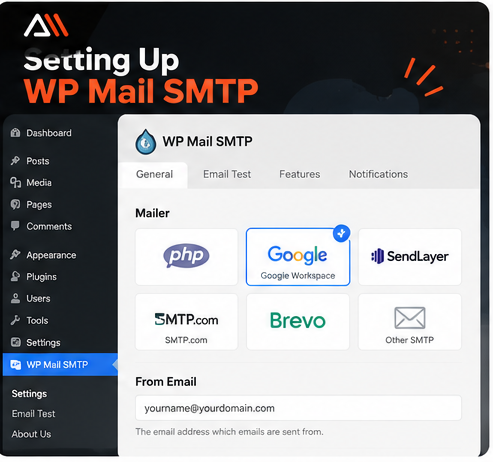
4. Set Up SMTP for More Reliable Email Delivery
If your contact form submits successfully but notification emails still do not arrive, the problem may be related to how WordPress sends email.
WordPress commonly uses its built-in wp_mail() function to send messages.
Depending on your hosting configuration, this may rely on server mail services that are not properly configured for reliable delivery.
SMTP stands for Simple Mail Transfer Protocol.
It allows WordPress to send emails through a configured mail service instead of relying only on the default server mail setup.
How to Set Up SMTP in WordPress
One popular option is the WP Mail SMTP plugin.
Here is the basic process:
- Log in to your WordPress dashboard.
- Go to Plugins > Add New Plugin.
- Search for WP Mail SMTP.
- Install and activate the plugin.
- Open its settings or setup wizard.
- Choose a supported email provider or mailer.
- Follow that provider’s authentication instructions.
- Save the configuration.
Depending on your email provider, setup may require an authorized account connection, SMTP credentials, or API configuration.
Use the official instructions for your chosen provider.
Do not copy random SMTP server names, ports, or passwords from online examples.
If your business already uses an email service, ask your provider which sending method it supports.
Send a Test Email
After configuration:
- Open WP Mail SMTP > Tools > Email Test.
- Enter an email address you can access.
- Send the test email.
- Check whether it arrives.
- Submit your contact form again.
If the SMTP test succeeds but the contact form notification still fails, go back to your form’s notification settings.
A successful SMTP test does not automatically prove that every contact form is configured correctly.
Important: SMTP can improve delivery reliability, but it does not guarantee that every email will reach the inbox.
5. Check SPF, DKIM, and DMARC Records
You might have configured SMTP correctly and still experience email delivery problems.
One possible reason is missing or incorrect domain authentication.
Email providers use authentication methods to help identify whether a message is genuinely authorized by the sending domain.
Three important terms are:
SPF — Sender Policy Framework
SPF identifies which email servers are allowed to send messages for your domain.
DKIM — DomainKeys Identified Mail
DKIM uses a digital signature that helps receiving systems verify that a message was authorized and has not been improperly changed.
DMARC — Domain-based Message Authentication, Reporting and Conformance
DMARC helps domain owners define how receiving systems should handle messages that fail relevant authentication checks. It also supports reporting.
How to Fix Email Authentication Problems
First, identify which email provider your WordPress website uses to send messages.
Then:
- Open your email provider’s official setup documentation.
- Check its required DNS records.
- Compare those records with your domain’s DNS configuration.
- Ask your hosting or email provider to correct any missing or conflicting records.
- Test email delivery again after DNS changes have propagated.
Be careful: Incorrect DNS changes can interrupt business email.
Do not delete existing MX, SPF, DKIM, or DMARC records without understanding their purpose.
For detailed requirements, read Google’s official Email Sender Guidelines.
For most beginners, asking the email provider to verify the records is safer than guessing the settings.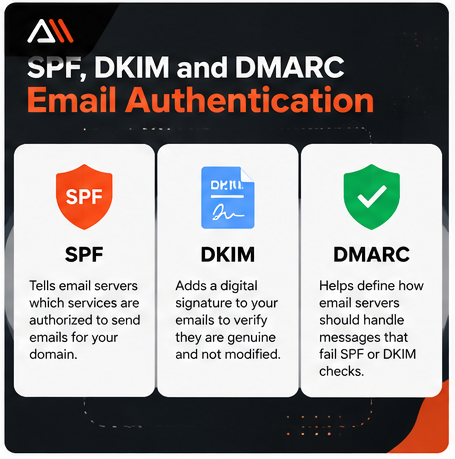
6. Check for Plugin or Theme Conflicts
Sometimes, the problem begins after installing or updating a plugin.
For example, a security plugin may interfere with form requests, or an optimization plugin may affect the JavaScript needed for form submission.
A conflict is especially worth investigating when your form previously worked and suddenly stopped.
How to Fix It Safely
Before making changes, create a current website backup.
Then:
- Check whether WordPress or the contact form plugin recently updated.
- Review the form plugin’s error messages and documentation.
- Test the form in a staging environment if available.
- Temporarily disable a suspected conflicting plugin in staging.
- Test the form again.
- Restore the original settings if the test does not identify the problem.
If you find a conflict, check for updates or contact the plugin developer.
Avoid deactivating every plugin on a busy live website without a backup or testing plan.
Doing so can interrupt important features, including checkout, security, and customer forms.
Quick tip: If your form shows an error before submission completes, investigate the form and website environment before assuming SMTP is the cause.
7. Check Your Hosting and Email Server Settings
Your contact form plugin may be working, and your notification settings may be correct, but your hosting environment could still prevent emails from being sent.
Some hosting providers restrict outgoing email connections or require specific mail services.
Server configuration problems can also cause email failures.
How to Fix It
Contact your hosting provider and explain the issue clearly.
You can send a message like this:
“My WordPress contact form submits successfully, but notification emails are not reaching the recipient. Could you please check the server mail configuration, outgoing SMTP restrictions, and relevant error logs?”
If your SMTP plugin shows an error, include the exact error message without sharing passwords or secret keys.
Ask the provider whether:
- Outgoing email connections are allowed
- The selected mailer is supported
- Relevant server errors have been recorded
- Additional authentication or configuration is required
Do not change server ports or security settings without understanding the provider’s requirements.
Your hosting support team can often help identify problems that are not visible in the WordPress dashboard.
8. Update Your Contact Form Plugin and Test Again
Outdated plugins can sometimes cause problems because of bugs or compatibility issues.
For example, a contact form plugin may not work correctly with another updated plugin or a newer WordPress version.
Keeping software updated is important, but updates should be handled carefully.
How to Fix It
Start by checking your installed plugin versions.
- Go to Dashboard > Updates.
- Check whether your contact form plugin has an available update.
- Review compatibility information and the update notes.
- Back up your website.
- Apply updates safely, preferably testing important changes in staging.
- Submit a new test form.
If you use a caching or optimization plugin, check whether it affects form submission scripts.
Do not clear or disable security settings blindly.
After testing, confirm that both the form submission and notification email work.
The goal is not simply to remove an error message. The goal is to make sure real customer inquiries can reach you.
WordPress Contact Form Troubleshooting Checklist
If you are still unsure where to start, use this checklist.
Problem | First thing to check |
Form submits, but no email arrives | Spam folder and notification settings |
Notification goes to the wrong address | Send To Email field |
Emails are repeatedly marked as spam | Sender configuration and authentication |
SMTP test fails | Mailer settings and hosting restrictions |
SMTP test works, but form emails fail | Contact form notification settings |
Form does not submit | Form errors, JavaScript, security, or plugin conflicts |
Problem started after an update | Plugin compatibility and recent changes |
Work through the checks in order rather than changing multiple settings at once.
This makes it easier to understand which action solved the problem.
How to Prevent Contact Form Email Problems in the Future
Fixing the problem is important, but preventing it from happening again is even better.
Start by testing your contact form regularly.
You can also follow these habits:
- Keep your form plugin and WordPress updated.
- Use a properly authenticated sending service.
- Monitor your business inbox and spam folder.
- Review important forms after website updates.
- Keep your notification recipient addresses current.
- Consider secure form-entry storage where your plugin supports it.
- Review email delivery logs if your chosen tools provide them.
Remember that not every contact form plugin stores submissions automatically.
For example, if your plugin only sends notifications by email and does not save entries, a failed notification could mean you lose the inquiry.
If you choose to store submissions, protect personal information and set an appropriate retention policy.
For a business website, contact form reliability should be part of routine website maintenance.
When Should You Ask a WordPress Developer for Help?
Some contact form problems are simple.
You might only need to correct an email address or enable notifications.
But technical support may be useful when:
- SMTP authentication repeatedly fails.
- DNS email records need correction.
- Your website has plugin or theme conflicts.
- Form submissions trigger server errors.
- Your contact form stops working after updates.
- You cannot identify why important inquiries are missing.
A developer can help investigate the form, WordPress configuration, hosting environment and email delivery process.
At Arsln Mak IT Solutions Agency, we provide WordPress development and website support services designed to help businesses maintain functional, user-friendly websites.
If your contact form is not working as expected, identifying the actual cause is the first step toward a reliable solution.
Frequently Asked Questions
Why is my WordPress contact form not sending emails?
Common reasons include incorrect notification settings, spam filtering, missing SMTP configuration, sender authentication issues or hosting restrictions. Test the form first to determine whether submission or email delivery is failing.
Do I need SMTP for my WordPress contact form?
Not every website requires an SMTP plugin but a properly configured authenticated mail service can improve delivery reliability when default server email sending is unreliable.
Why does my contact form say the message was sent, but I receive nothing?
A success message may indicate that the form completed its submission process, not that the notification reached your inbox. Check spam folders, notification settings, email logs and your sending service.
How do I fix Contact Form 7 not sending emails?
Check the Mail tab, including the To and From fields. Make sure the sender address belongs to an authorized domain, then investigate email delivery and hosting configuration if the problem continues.
Why are WPForms notifications not working?
Notifications may be disabled, addressed incorrectly or affected by email delivery problems. Open WPForms, select the form and review Settings > Notifications before testing SMTP.
Can Gmail block WordPress contact form emails?
Gmail may reject or filter messages that do not meet its sender requirements or appear suspicious. Proper email authentication and authorized sender configuration can reduce these problems.
Will installing WP Mail SMTP automatically fix everything?
No. Installing the plugin is only the first step. You must configure a supported mailer correctly. SMTP also cannot fix every form submission error or incorrect notification setting.
Can I lose customer inquiries if contact form emails fail?
Yes. If your form does not store submissions and the notification is not delivered, you may lose access to the inquiry. Consider reliable entry storage, monitoring and appropriate privacy safeguards.
Final Thoughts
A broken contact form can create a serious problem for a business website.
Visitors may believe they have contacted you, while their messages never reach your inbox.
If your WordPress contact form is not sending emails, do not immediately rebuild the form or install several new plugins.
Start with a simple test. Check the notification address, spam folder, sender configuration and email delivery settings.
If those checks do not solve the issue, investigate SMTP, domain authentication, plugin conflicts and hosting restrictions.
The most useful solution is the one that fixes the actual problem.
Need help with your WordPress website?
Visit Arsln Mak IT Solutions Agency to explore WordPress development and website support solutions.