

You finally have a logo that looks perfect. The colors match your brand, the font feels right, and everything looks professional. But when you upload it to your website or use it on a business card, something goes wrong.
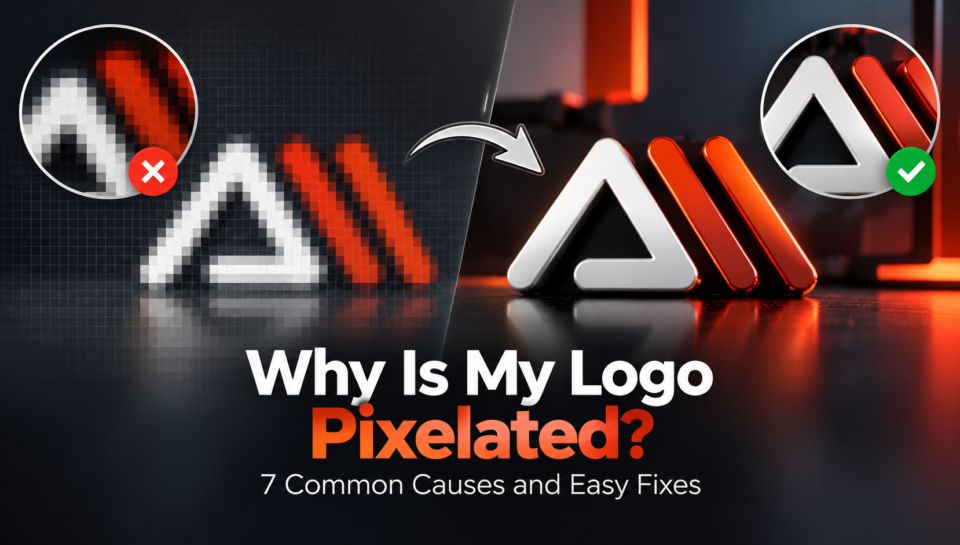
The edges look rough. The text appears blurry. Sometimes, the entire logo looks like it was made from tiny squares.
You might be wondering, “Why is my logo pixelated?”
The good news is that a blurry logo does not always mean you need a completely new design. In many cases, the problem comes from the image resolution, file format, or the way the logo was exported.
Whether you created your logo in Canva, Photoshop, or another design tool, understanding what causes pixelation can save you time and frustration.
In this guide, we will explore seven common reasons logos lose their quality and explain how to fix them without making things unnecessarily complicated.
What Does a Pixelated Logo Mean?
A pixelated logo is a logo that looks blurry, blocky, or unclear, especially when you make it larger.
Digital images are often made from tiny colored squares called pixels. When an image contains too few pixels for the size at which it is displayed, those squares can become noticeable.
Imagine drawing a small heart on graph paper. When you look at it from a distance, it appears smooth. But when you zoom in, you can clearly see the individual squares.
Something similar happens with low-resolution digital logos.
For example, imagine you download a logo that is only 150 pixels wide. It might look fine as a small profile picture. However, if you stretch it across a large website banner, the edges may become rough.
This is why choosing the right file format and dimensions matters just as much as designing an attractive logo.
7 Common Reasons Your Logo Looks Pixelated
1. Your Logo Has a Low Resolution
One of the most common reasons for a blurry logo is low image resolution.
Resolution refers to the number of pixels an image contains. A logo measuring 200 × 200 pixels has much less image information than one measuring 2000 × 2000 pixels.
If you enlarge a small image beyond its original dimensions, your software has to estimate the additional pixels. The result may look soft or blocky.
How to fix it:
Find the original logo file instead of using a small downloaded copy.
Export the design at dimensions suitable for its intended use.
Avoid enlarging small screenshots or thumbnails.
Use a vector version when possible.
For example, if your website displays a logo at 250 CSS pixels wide, a 500-pixel-wide PNG can provide sharper results on many high-density screens.
However, larger files are not always better. An unnecessarily huge image can slow down your website.
The goal is to choose a suitable resolution without creating excessive file sizes.
2. You Are Using the Wrong File Format
Not every image format works equally well for logos.
You have probably seen file extensions such as JPG, PNG, SVG, and PDF. They may look similar when opened, but they store image information differently.
JPG files use lossy compression, which can introduce visible artifacts around text and sharp edges.
PNG files preserve pixel information without lossy compression and support transparency. This makes them useful for digital logos.
SVG files store scalable graphic information, making them particularly suitable for logos created with vector shapes.
How to fix it:
Use SVG for suitable vector logos, PNG for high-quality raster logos, and JPG mainly when its smaller file size is more important than transparency and perfectly clean edges.
Remember that changing a JPG filename to SVG will not magically turn the image into a vector.
You can learn more about the difference through Adobe’s guide to raster and vector graphics.
3. You Enlarged a Small Logo Too Much
Have you ever downloaded a logo from social media and tried to use it on a poster?
It might look acceptable on your phone, but terrible when printed.
That happens because the original image was created for a much smaller display area.
Stretching a raster image does not restore the details that were never there.
How to fix it:
Start with the original design whenever possible.
If you only have a small raster image, check whether a higher-resolution version exists in your website files, cloud storage, or design project.
If no original file is available, consider rebuilding the logo as a vector.
AI upscaling tools may improve its appearance, but they cannot reliably recover every original shape, letter, or fine detail.
For professional branding, manually recreating a simple logo often produces cleaner results.
4. Your Canva Export Settings Are Incorrect
Canva makes graphic design easier, but exporting a logo with unsuitable settings can affect its appearance.
For example, downloading a small design as a JPG and then stretching it across a large banner may produce blurry results.
Another common mistake is uploading a low-quality logo into Canva and expecting a high-resolution download to restore its missing details.
How to fix a pixelated logo in Canva:
Open your original Canva design.
Check the dimensions of the design.
Select Share → Download.
Choose PNG for a raster logo.
Select an appropriate export size and quality.
Download the image and inspect it at the intended display size.
If your design is compatible with vector export and your plan supports it, SVG may be a better choice.
Some advanced export features, including SVG downloads and transparent backgrounds, require an eligible Canva plan.
You can review the available formats in Canva’s official download guide.
Important: If your Canva design contains an already pixelated image, exporting the whole design as SVG will not necessarily fix that image. You may need to replace it with a better-quality asset.
5. Your Logo Looks Blurry on Your Website
Sometimes, a logo looks sharp on your computer but becomes blurry after uploading it to WordPress or another website platform.
This can happen for several reasons.
Your website may be displaying a smaller image at a larger size. A theme or page builder may be selecting an unsuitable image size. CSS settings may also stretch the logo beyond its natural proportions.
Image optimization tools can sometimes introduce additional compression artifacts, particularly when converting files to lossy formats.
How to fix a blurry logo on a WordPress website:
First, open the original uploaded image in a new browser tab. Check whether it looks sharp at its intended size.
If it looks clear, inspect how your website displays it.
Check the following:
Whether the image is being stretched beyond its actual dimensions.
Whether the website is loading a smaller thumbnail instead of the full logo.
Whether the width and height settings preserve the original proportions.
Whether an optimization plugin is compressing the image too aggressively.
Whether your browser or website cache is displaying an older version.
If you use Elementor, review the logo widget’s image-size and width settings.
You may also need to clear your WordPress cache after replacing the logo.
For websites that require consistent branding, properly prepared visual assets are important. Explore our WordPress website development services to learn how professional website design and branding can work together.
6. Your Logo Was Saved as a Screenshot
Taking a screenshot of a logo might seem like a quick solution, especially when you cannot find the original file.
Unfortunately, screenshots capture only the pixels visible on your screen.
They do not preserve the original vector shapes, editable typography, or high-resolution artwork.
For example, if you take a screenshot of a 120-pixel-wide logo and later enlarge it to 900 pixels, the quality will usually suffer.
How to fix it:
Avoid using screenshots as final logo files.
Instead, request the original design from the person who created it.
Useful files may include SVG, AI, EPS, or an editable source document.
If you designed the logo yourself, return to the original project and export it again.
Keeping your source files organized can prevent this problem in the future.
7. Your Logo Was Not Prepared for Printing
A logo that looks clear on a website may not look equally good on a business card, brochure, or large banner.
This happens because printing and screen display have different requirements.
A logo intended for a small digital icon may not contain enough detail for a large printed design.
Professional printing also involves considerations such as physical dimensions, image resolution, and color settings.
How to fix it:
Whenever possible, provide your printer with a suitable vector file.
For raster artwork, ask the printer about the required resolution at the final printed size. Around 300 PPI is common for many small, high-quality print projects, but large-format printing may have different requirements.
Do not simply change a low-resolution file’s PPI setting and assume it now contains more real detail.
If you are preparing business cards, brochures, or other branding materials, a properly designed logo package can help you avoid repeated quality problems.
How to Fix a Pixelated Logo in Photoshop
Photoshop offers several ways to resize, inspect, and improve raster images.
However, the best method depends on the quality of your original file.
Step 1: Open the original image
Open the highest-quality logo file available.
Avoid starting with a screenshot or compressed social media image unless no other version exists.
Step 2: Check image dimensions
Go to Image → Image Size.
Review the width and height in pixels.
Compare those dimensions with the size required for your project.
Step 3: Resize carefully
If you need to enlarge the image, enable Resample and select an appropriate resampling method.
Photoshop may offer options such as Preserve Details, depending on the version and workflow.
These tools can improve the appearance of some images, but they cannot perfectly recreate missing details.
Step 4: Inspect the edges
Zoom in and examine the logo’s text, curves, and outlines.
Look for blurry edges, compression artifacts, or uneven shapes.
Avoid applying excessive sharpening because it can create unnatural outlines.
Step 5: Export the final file
For many website logos, PNG is a practical choice.
If your logo contains editable vector shapes or text, consider preserving those elements in a suitable vector workflow rather than flattening everything into a raster image.
A simple logo recreated with clean vector paths will usually scale better than a heavily enlarged raster copy.
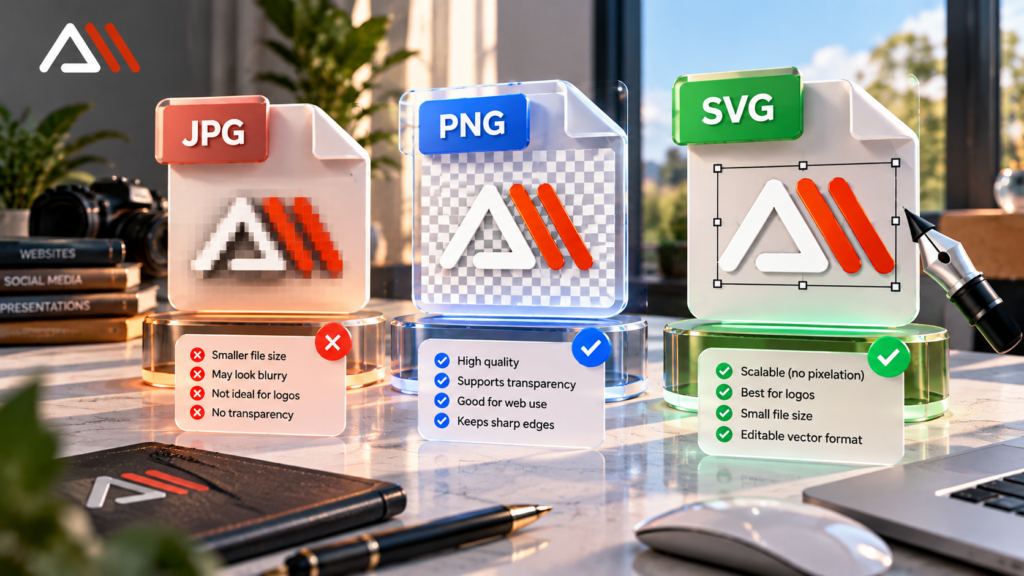
PNG vs JPG vs SVG: Which Is Best for a Logo?
Choosing the right format is one of the easiest ways to prevent quality problems.
| Format | Best use | Main limitation |
|---|---|---|
| PNG | Websites, transparent logos, digital graphics | Can become pixelated when enlarged |
| JPG | Photographic or background-heavy graphics | Lossy compression and no transparency |
| SVG | Scalable vector logos and icons | Not every complex design is suitable |
| Sharing print-ready or vector artwork | May contain raster images rather than vectors |
For most simple vector logos, SVG is an excellent option for digital use.
For website platforms or situations where SVG is not supported, a correctly sized PNG can work well.
For professional printing, request the file format recommended by your print provider.
One important detail: SVG is a container format. If someone simply embeds a low-resolution JPG inside an SVG, the image can still look pixelated.
The actual artwork must be vector-based to benefit from resolution-independent scaling.
How to Prevent Your Logo From Becoming Pixelated
Fixing a blurry logo is useful, but preventing the problem is even better.
Here are a few habits that make a difference.
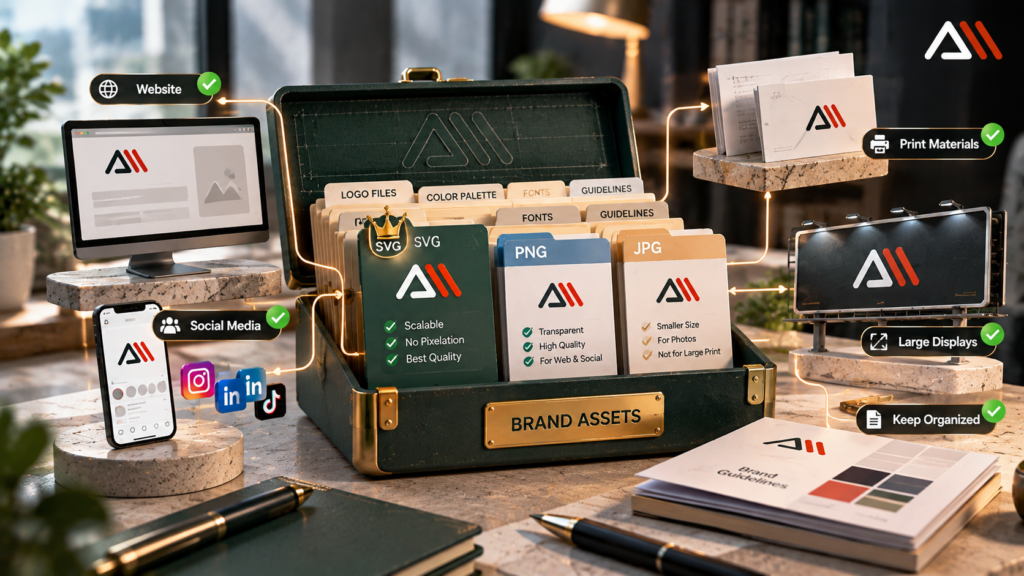
Keep your original design files. Never rely on one downloaded PNG as your only copy.
Create a vector master. If your logo is made from typography, lines, and simple shapes, maintain a clean vector version.
Export for each purpose. Your website header, social media profile, business card, and large banner may require different versions.
Maintain correct proportions. Stretching a logo horizontally or vertically can damage its appearance even when the image resolution is high.
Test before publishing. Check your logo on mobile devices, desktop screens, and printed samples when relevant.
Use consistent brand assets. A small brand guide containing approved logo versions, fonts, and colors helps keep everything professional.
Logo quality is only one part of visual branding. Typography also influences how polished a brand feels. For related design advice, read our guide on how to pair serif and sans serif fonts without clashing.
When Should You Redesign a Pixelated Logo?
Not every blurry logo needs a redesign.
If you still have the original vector file, exporting it correctly may solve the problem in minutes.
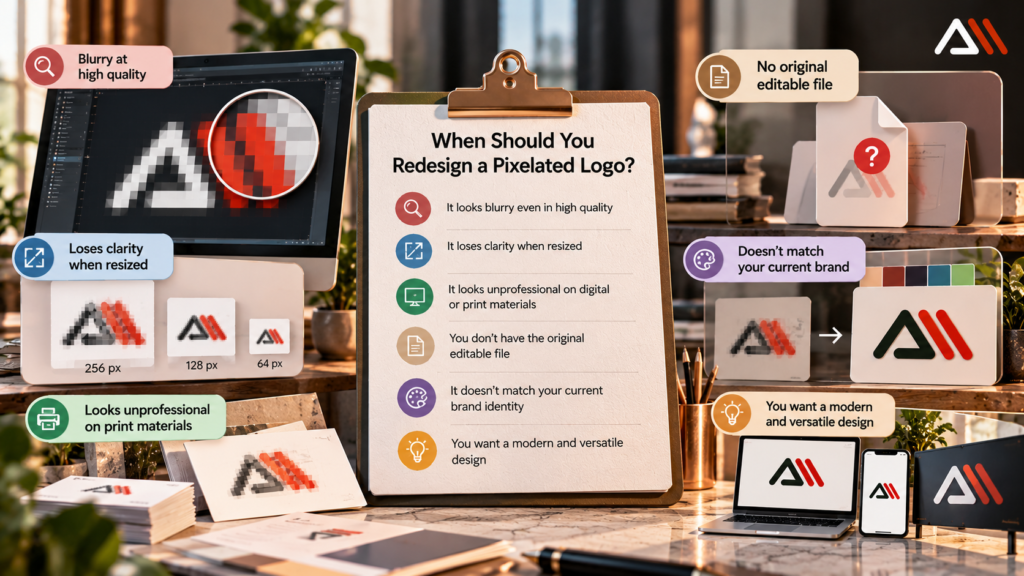
However, redesigning or recreating the logo may be worth considering when:
The original design file has been lost.
The only available version is a tiny screenshot.
The typography is unreadable.
The logo contains unnecessary details that disappear at smaller sizes.
The design looks inconsistent across digital and printed materials.
A professional logo should remain recognizable in different sizes.
It should work on a website, a social media profile, business stationery, and promotional materials without losing its identity.
At Arsln Mak, we help businesses create professional logos, visual identities, and branding materials designed for different platforms.
Explore our professional graphic design services if your existing logo needs a cleaner, more flexible design.
Frequently Asked Questions
Why is my logo pixelated even though it is a PNG?
PNG prevents lossy compression, but it does not make an image infinitely scalable. If the original PNG is too small and you enlarge it, the logo can still look pixelated.
Can I fix a pixelated logo without Photoshop?
Yes. You can return to the original design in Canva or another editor and export it at a suitable size. If you only have a low-quality image, recreating the logo may produce better results than enlarging it.
Why does my logo look blurry in Canva?
The original uploaded image may have low resolution, the design may be exported too small, or a raster logo may be enlarged beyond its natural size.
Is SVG better than PNG for logos?
For simple logos made from vector shapes and text, SVG is usually better for scaling. PNG is still useful when you need a raster image with transparency or when SVG is not supported.
Does increasing DPI fix a pixelated logo?
Not by itself. Changing DPI or PPI metadata does not automatically create missing image detail. The image needs sufficient actual pixels for its final size, or it needs to be recreated as vector artwork.
Why does my logo look blurry on mobile?
Your website might be loading an undersized image, stretching it, or applying CSS that affects its appearance. Check the actual image file, responsive image settings, and the logo’s display dimensions.
Final Thoughts
If you have been asking, “Why is my logo pixelated?” the answer is often simpler than you expect.
Low resolution, incorrect export settings, excessive resizing, and unsuitable file formats are among the most common causes.
Before replacing your logo, check the original file, its dimensions, and how it is being displayed.
Whenever possible, keep a vector version for future use. It gives you more flexibility when your brand needs to appear on different platforms.
A sharp logo might seem like a small detail, but it contributes to a consistent and professional brand identity.
If you need a logo that looks clean across websites, social media, and printed materials, Arsln Mak offers graphic design and branding solutions to help your business present itself professionally.