

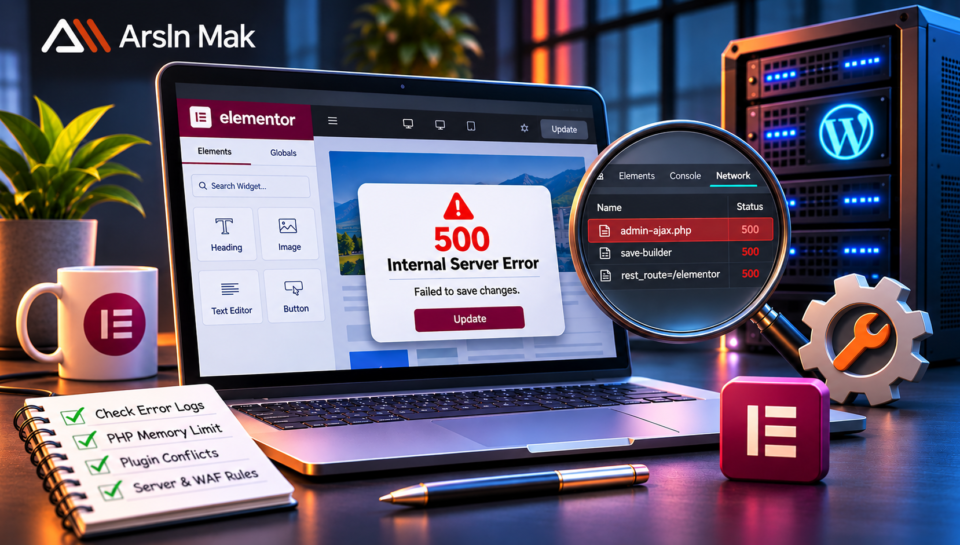
You spend hours designing a WordPress page with Elementor. Everything looks perfect in the editor. But when you click Update or Publish, the page refuses to save and displays an Elementor 500 Internal Server Error.
Sometimes the editor stays open, but your changes disappear after refreshing. In other cases, the browser shows a failed request to admin-ajax.php or a WordPress REST API endpoint.
This problem can be frustrating because the cause is not always visible inside Elementor.
An Elementor 500 Internal Server Error usually means the server failed to complete a request. It may involve PHP memory exhaustion, plugin conflicts, server configuration or a failed background process.
This guide explains eight practical ways to investigate the error, identify its cause and restore Elementor’s saving functionality.According to Elementor’s official 500 error guide, insufficient memory, third-party plugin conflicts and PHP fatal errors are among the possible causes of this server-side issue.
What Is the Elementor 500 Internal Server Error?
HTTP 500 is a server-side response indicating that a request could not be completed because of an unexpected condition.
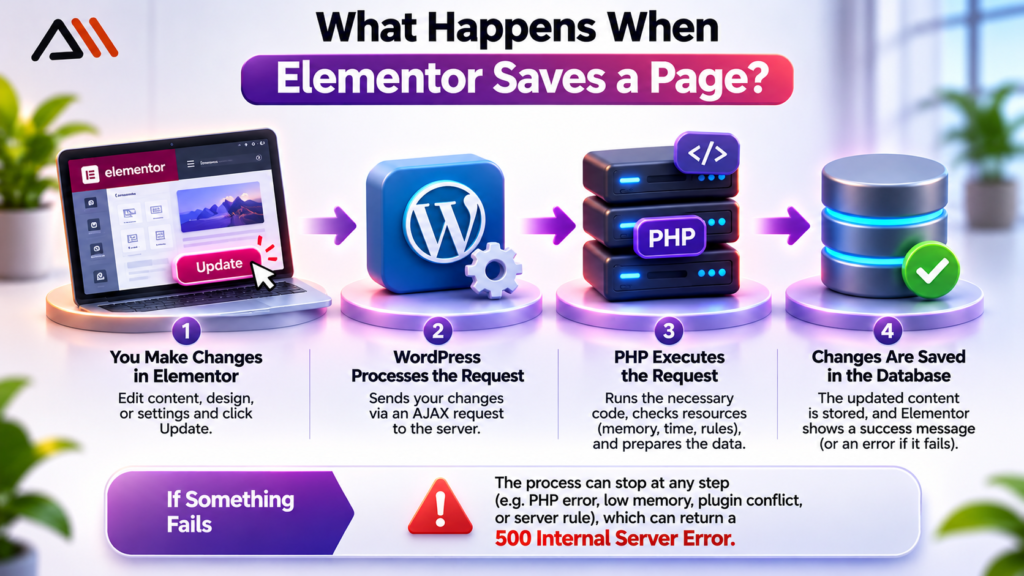
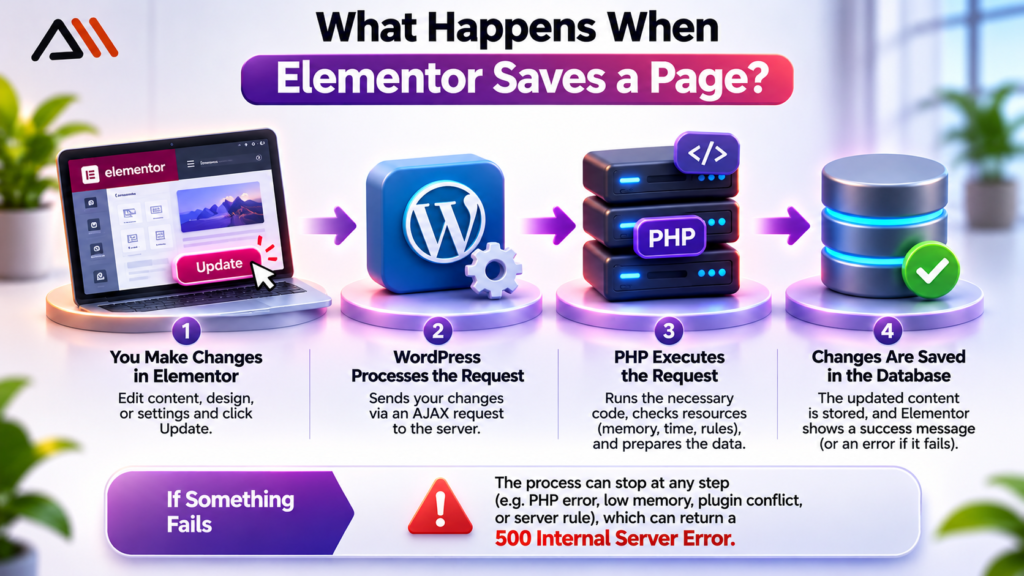
When Elementor saves a page, it communicates with WordPress and the hosting server. The process may involve PHP execution, database updates, AJAX requests and other background operations.
If one of these operations fails, Elementor may display a server error.
Common symptoms include:
- Elementor displays “Server Error (500)” after clicking Update.
- Page changes appear saved but disappear after refreshing.
- The browser’s Network tab shows a failed AJAX request.
- Elementor works on smaller pages but fails on larger ones.
- The editor works in Safe Mode but not in the normal environment.
However, a 500 response does not identify the exact cause. You need to examine the failed request and relevant server logs.
1. Inspect the Failed Request Using Browser Developer Tools
Before changing WordPress settings, determine which request is failing.
Open the affected page in Elementor and follow these steps:
- Press F12 or right-click and select Inspect.
- Open the Network tab.
- Select the Fetch/XHR filter.
- Click Update in Elementor.
- Look for requests returning HTTP 500.
- Open the failed request and inspect its Headers and Response tabs.
The failed URL may contain:
/wp-admin/admin-ajax.php
Or it may use a WordPress REST API endpoint.
Check the response body for an error message, request identifier or other useful information.
For example, if the request returns a PHP fatal error, that provides a much stronger diagnostic clue than the HTTP status alone.
Important: Do not share authentication cookies, nonces, passwords, or sensitive request payloads when asking for technical support.
If the response contains no useful details, continue with server-side logging.
2. Check PHP Error Logs Before Increasing Server Limits
One of the most useful ways to diagnose an Elementor 500 Internal Server Error is to examine PHP error logs.
Depending on your hosting provider, these logs may be available through cPanel, Plesk, a hosting dashboard or server management tools.
Look for entries recorded at the exact time Elementor failed to save.
Examples of useful log messages include:
- Allowed memory size exhausted
- Maximum execution time exceeded
- Uncaught Error
- Uncaught TypeError
- Call to undefined function
Each message points toward a different investigation.
For example, a memory exhaustion message suggests insufficient available PHP memory, while an uncaught error may identify a particular plugin or theme file.
If your hosting dashboard does not provide logs, request the PHP error log and relevant web server error log from your hosting provider.
Avoid assuming that the absence of an error in one log means the server is functioning correctly. Different failures may be recorded in different logging systems.
3. Enable WordPress Debug Logging Safely
WordPress includes built-in debugging features that can help identify errors occurring during Elementor save requests.
Before editing configuration files, create a backup and preferably reproduce the issue on a staging website.
Open wp-config.php and locate the existing debugging settings.
If they are not already defined, add:
define( ‘WP_DEBUG’, true );
define( ‘WP_DEBUG_LOG’, true );
define( ‘WP_DEBUG_DISPLAY’, false );
@ini_set( ‘display_errors’, 0 );
Place these settings before the line that says:
/* That’s all, stop editing! Happy blogging. */
Now reproduce the Elementor saving error.
WordPress may record relevant information in:
/wp-content/debug.log
Open the log and examine entries matching the failure time.
If you discover a fatal error referencing a plugin file, investigate that plugin before changing unrelated server settings.
Security note: Debug logs can contain sensitive information. Restrict access, avoid exposing logs publicly and disable temporary debugging after troubleshooting. WordPress recommends using debugging tools on staging or development installations rather than leaving them enabled on live websites.
For detailed instructions on configuring WP_DEBUG and WP_DEBUG_LOG, refer to the official WordPress debugging documentation.
4. Verify PHP Memory Limits and Resource Usage
Elementor pages containing numerous widgets, dynamic elements and third-party integrations may require substantial server resources.
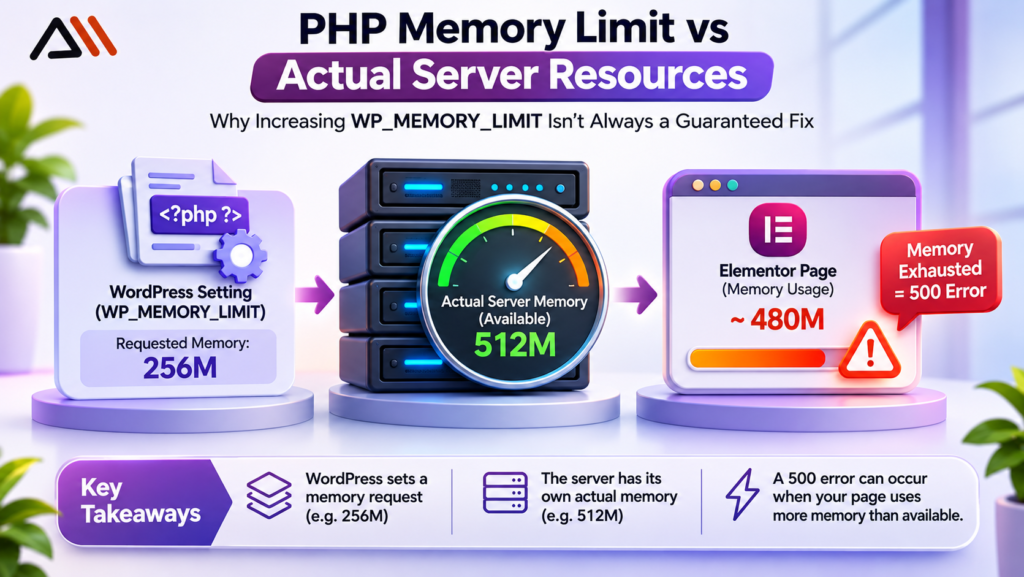
According to Elementor’s documentation, the recommended memory allocation depends on the website configuration. Elementor identifies 256 MB as a minimum and recommends 512 MB for websites using additional plugins.
However, setting a higher memory limit does not guarantee that the server actually provides that amount.
Go to:
WordPress Dashboard → Elementor → System Info
Review the available WordPress and PHP memory information.
You can also inspect the WordPress Site Health information.
If logs confirm memory exhaustion, ask your hosting provider whether additional memory can be allocated.
A common WordPress configuration is:
define( ‘WP_MEMORY_LIMIT’, ‘256M’ );
This setting should be added only if it is not already defined, and the hosting environment must permit the requested allocation.
For administration tasks, some installations may also use WP_MAX_MEMORY_LIMIT.
Remember that WordPress settings cannot override every hosting restriction.
If memory usage remains excessive, investigate inefficient plugins, unusually large page structures or server resource limitations rather than repeatedly increasing the limit.Elementor also provides official troubleshooting recommendations for identifying plugin conflicts, theme compatibility issues and server configuration problems.
5. Test Plugin and Theme Conflicts With Elementor Safe Mode
Third-party plugins can interfere with Elementor’s editing and saving operations.
Potential conflicts may involve security plugins, optimization tools, custom widgets or extensions that modify WordPress requests.
Elementor provides Safe Mode to help isolate some of these problems.
In current Elementor versions, navigate to the relevant Safe Mode option under Elementor’s editor tools, enable it, and reopen the affected page.
Try saving a small change.
If the page saves successfully in Safe Mode, this suggests an environment-related conflict, although it does not identify the responsible component.
For further testing, use a staging website:
- Disable third-party plugins while keeping Elementor and Elementor Pro active.
- Test whether the page saves.
- Reactivate plugins individually.
- Repeat the save test after each activation.
- Identify the component associated with the failure.
If plugin testing does not explain the issue, investigate the active theme and custom code.
Avoid deactivating essential plugins on a live business website without assessing the potential impact.If you’re troubleshooting other Elementor-related issues, our guide to Elementor mobile dropdown troubleshooting explains another common problem involving website functionality.
6. Investigate ModSecurity, WAF and Security Rules
Some hosting environments use security systems such as ModSecurity, Imunify360 or a web application firewall.
These systems inspect incoming requests and may block traffic that matches security rules.
Elementor can send relatively large or complex requests when saving pages. In certain configurations, a security rule may incorrectly classify a legitimate request as suspicious.
However, a 500 error alone does not prove that a firewall is responsible.
To investigate, compare the failed request’s timestamp with:
- Web application firewall event logs
- ModSecurity audit logs
- Web server error logs
- Hosting security reports
Look for a matching rule ID, transaction ID or blocked request.
If a security rule is confirmed as the cause, ask your hosting provider to review it.
A narrowly scoped exception may be appropriate, but only after the provider verifies the false positive.
Do not disable the entire firewall permanently or whitelist all requests to admin-ajax.php.
That could expose the website to unnecessary security risks.
7. Check Request Size Limits and Server Timeouts
Large Elementor pages can generate substantial save requests.
If the request exceeds server limits or takes too long to process, the operation may fail.
Check the following PHP settings with your hosting provider:
- max_execution_time
- max_input_vars
- post_max_size
- memory_limit
Also investigate web server request-size restrictions and upstream timeouts.
Different failures may produce different HTTP status codes.
For example, HTTP 413 generally indicates that a request exceeds an accepted size limit, while HTTP 504 indicates a gateway timeout.
These are not the same as HTTP 500, even if Elementor displays a similar saving failure.
Use the actual response status and server logs to determine which restriction is involved.
If only one unusually large page fails, duplicate it on staging and test whether reducing its complexity changes the result.
You can also separate reusable sections into Elementor templates to make the page easier to manage.
Avoid changing multiple server settings simultaneously. Otherwise, it becomes difficult to identify which adjustment resolved the problem.For businesses building complex WordPress websites, choosing the right development approach can help reduce avoidable technical issues. Explore our WordPress website development services for more information.
8. Test Database Operations and Elementor Page Structure
Elementor stores page information in WordPress, including structured data associated with page content.
Saving problems may occur when a database operation fails, a plugin interferes with stored data or a specific page contains problematic content.
First, determine whether the issue affects every Elementor page or only one.
If all pages fail, prioritize server configuration, shared plugins and request handling.
If only one page fails, investigate its widgets, custom code and page-specific content.
A useful diagnostic process is:
- Create a new test page on staging.
- Add a simple heading and save it.
- Add a small section from the problematic page.
- Save again.
- Repeat until the failure becomes reproducible.
This helps identify whether a particular section or widget contributes to the issue.
Check database-related errors in the server logs when available.
Also review excessive revisions if resource usage is already a confirmed concern.
Do not delete revisions or modify database tables without a verified backup. Revisions are not automatically the cause of an Elementor saving error.
What If Elementor Still Shows Error 500?
If none of the previous checks resolves the issue, collect a focused diagnostic report before contacting hosting or Elementor support.
Include:
- WordPress and Elementor versions
- PHP version and memory limits
- Exact error time and timezone
- Affected page URL
- Failed request URL and HTTP status
- Relevant PHP or server error log entries
- Whether the issue occurs on every page
- Results of Safe Mode and plugin conflict testing
This information helps technical support investigate the actual failure instead of recommending unrelated changes.
If the issue appeared after a recent update, check plugin compatibility and review the change history. Avoid rolling back versions without a backup and a clear recovery plan.
How to Prevent Elementor Saving Errors
Not every server error is preventable, but good maintenance practices reduce avoidable problems.
Keep WordPress, Elementor and compatible extensions updated. Test significant changes on staging before deploying them to production.
Monitor PHP errors and hosting resource usage, especially after installing new plugins.
Use reliable hosting with appropriate server resources and accessible technical logs.
Maintain regular backups, avoid unnecessary plugins and investigate recurring warnings before they become serious failures.
For complex pages, use reusable templates and keep custom code organized.
Most importantly, document any server configuration changes so future troubleshooting becomes easier.
Frequently Asked Questions
Why does Elementor show a 500 error when I click Update?
The server may be unable to complete Elementor’s save request because of a PHP error, resource limitation, plugin conflict or server configuration problem. Check the failed request and server logs to identify the cause.
Can low PHP memory cause an Elementor 500 Internal Server Error?
Yes. Insufficient memory can cause PHP execution to fail. However, memory should not be treated as the cause unless logs or resource monitoring support that diagnosis.
Can Cloudflare or ModSecurity cause Elementor saving problems?
Security systems can interfere with legitimate requests under certain configurations. Check security event logs and request details before changing firewall rules.
Why does Elementor save one page but not another?
The affected page may contain a problematic widget, custom code or unusually complex content. Testing its sections individually on staging can help isolate the issue.
Will clearing the cache fix an Elementor 500 error?
Clearing cache may resolve some editor-related problems but it usually does not address a genuine PHP fatal error or server resource failure. Investigate the actual HTTP response first.
Final Thoughts
An Elementor 500 Internal Server Error is not a single problem with one universal solution.
The most effective approach is to identify the failed request, inspect server logs, and test possible causes systematically.
Start with evidence instead of changing random settings. Once you know whether the issue involves PHP, plugins, server resources, or security rules, you can apply a targeted fix.
If your business website continues to experience Elementor errors, professional WordPress troubleshooting can help restore reliable editing and prevent repeated disruptions.
Need help fixing complex WordPress or Elementor issues? Explore the WordPress development and technical support services at Arsln Mak.